









Article Contents
- 1. Monthly Website Hosting Maintenance Checklist - Free Word and PDF Download
- 1.1. Download the Free Monthly Hosting Maintenance Checklist
- 1.2. Key Takeaways
- 1.3. Why Monthly Is the Right Cadence for Hosting Maintenance
- 1.4. Backups! Verify First, Before Anything Else
- 1.5. SSL Certificate and Domain Expiry Monitoring
- 1.6. CMS, Plugin and Theme Updates
- 1.7. Performance - TTFB, Core Web Vitals and Database Health
- 1.8. Security - Scans, Access Review and Error Logs
- 1.9. Uptime and Hosting Plan Review
- 1.10. The Complete Monthly Hosting Maintenance Checklist
- 1.11. Want Someone to Handle This Monthly Routine for You?
- 1.12. References & Additional Resources
- 1.13. Tagged In:
Monthly Website Hosting Maintenance Checklist - Free Word and PDF Download
Most hosting problems do not announce themselves. They develop quietly through missed updates, unchecked backups, accumulating database overhead and slowly degrading performance. A monthly routine catches them before they compound.
Important Note: Hosting control panel layouts, available tools, update processes and maintenance features vary by provider and platform. This checklist is provided for informational purposes only and covers the most common hosting environments. Some tasks may look different or require different steps depending on your specific host, CMS or server configuration. Always review your hosting provider’s documentation before making changes to your server environment or database.
Download the Free Monthly Hosting Maintenance Checklist
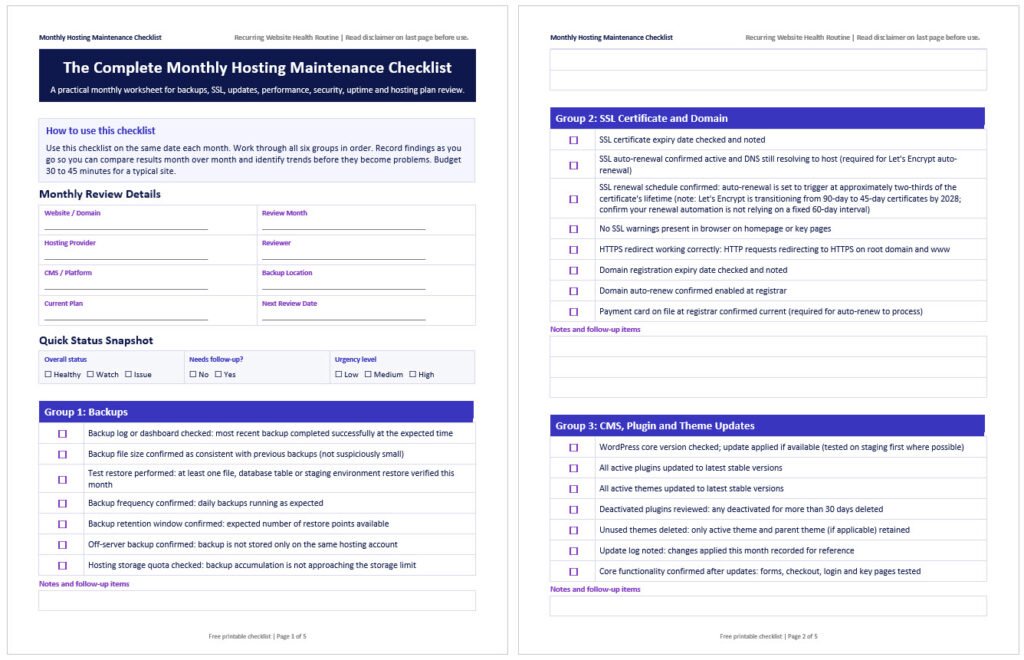
The complete checklist below is available as a free download in PDF and editable Word format. Save it as a recurring monthly task, print it and work through it by hand, or share it with whoever manages your hosting environment.
Both versions include all checklist items across the six groups, with notes fields for recording findings each month. The Word version is fully editable so you can adapt it for your specific hosting setup and track results over time.
Key Takeaways
- A monthly hosting maintenance routine takes 30 to 45 minutes and prevents the majority of performance, security and reliability problems that site owners encounter
- Backups are only valuable if they work; verifying that a backup is restorable is a distinct and essential monthly task separate from confirming it ran
- SSL certificate expiry and domain renewal dates should be monitored monthly; both create immediate site access failures when they lapse unexpectedly
- CMS core, plugin and theme updates close known security vulnerabilities; unpatched software is one of the most common entry points for site compromises
- TTFB measured monthly creates a performance baseline that reveals hosting degradation before it becomes noticeable to visitors or affects search rankings
- Database overhead from post revisions, spam comments, orphaned metadata and expired transients accumulates steadily and affects query speed; monthly optimization keeps it controlled
- Error logs contain early warnings for problems that have not yet surfaced as visible failures; reviewing them monthly is one of the highest-value, lowest-effort maintenance tasks available
Hosting environments degrade silently. A backup plugin that was configured six months ago may have stopped running after a WordPress update. An SSL certificate set to auto-renew may fail to do so if the domain DNS no longer resolves to the host. A database accumulating post revisions, spam comments and orphaned metadata grows slower with every passing week.
Error logs fill with recurring PHP warnings that have not yet caused a visible failure but will. None of these announce themselves until the problem is large enough to be impossible to ignore.
The solution is not complicated. A recurring monthly routine that takes 30 to 45 minutes covers the hosting environment checks that prevent most of these failures. The key word is routine. The value of this checklist is not in running it once; it is in running it every month so trends become visible, problems are caught early and nothing important goes unchecked for longer than 30 days.
This checklist is focused specifically on hosting infrastructure and server health. It is not a general website maintenance checklist. Content audits, broken link scans, SEO reviews and social media updates are outside its scope. This checklist covers the hosting environment: backups, SSL, updates, performance, security and the hosting plan itself.
If you want to understand how hosting affects performance more broadly, how web hosting impacts website speed covers that relationship in depth. For the question of whether a managed provider should handle some or all of these tasks for you, what managed hosting means and who needs it is worth reading before deciding how much of this work to own yourself.
Why Monthly Is the Right Cadence for Hosting Maintenance
Different maintenance tasks belong at different frequencies. Daily and automated monitoring covers acute failures: uptime alerts, failed backup notifications and security incident triggers. Weekly checks cover rapid-change items: plugin updates for high-activity sites, comment moderation and form functionality verification.
Monthly is the right cadence for the hosting environment layer because these items change slowly enough that daily checks are unnecessary but quickly enough that quarterly checks leave too long a window for problems to develop unnoticed.
SSL certificates can expire with less than 30 days notice if auto-renewal fails. Plugin vulnerabilities are typically disclosed and actively exploited within weeks of a public CVE. Database overhead accumulates noticeably over 30 days on an active site. TTFB degradation from a hosting environment change is detectable month over month. A 30-day check interval catches all of these before they cause significant damage.
The practical structure for a monthly session is straightforward. Set a recurring calendar reminder for the same date each month. Work through the checklist in order. Record findings as you go rather than relying on memory. The whole routine should take 30 to 45 minutes on a typical site. On a site with multiple plugins, a busy database or a history of performance issues, budget an hour. The time investment is small relative to the cost of the problems it prevents.
If you are currently on a hosting plan that handles some of these tasks automatically, confirm that those automated systems are actually running correctly. Managed hosting reduces operational workload but does not eliminate the need for monthly verification. A managed host that handles automatic updates and backups still benefits from a monthly check confirming those systems are operating as expected.
How to choose the right web hosting provider covers what to look for in a host’s maintenance and monitoring features if you are evaluating whether your current provider is the right fit.

Backups! Verify First, Before Anything Else
Backups are the first item on this checklist for a reason. Before running any update, making any configuration change or doing anything else this month, confirm that your backup is current, complete and restorable. Every other task on this checklist carries some small risk of causing a problem. A verified backup is what makes that risk manageable.
There are two distinct things to verify and they are not the same thing. First, confirm the backup ran: open your backup plugin dashboard, hosting control panel or backup service and confirm the most recent backup completed successfully, at the expected time, with a file size that is consistent with previous backups.
A backup log showing success but a file that is suspiciously small (a few kilobytes when previous backups were hundreds of megabytes) is a sign that the backup ran but captured almost nothing.
Second, confirm the backup is restorable. Once a month, perform an actual test restore of at least one component: a single file, a specific database table or a staging environment restore of the full site. This is the check most site owners skip, and it is the one that matters most. Backup systems fail in ways that do not show up in the success log: corrupted archives, incomplete database exports, permission errors that prevent restoration. The only way to know a backup will work when you need it is to test it before you need it.
WordPress.org’s documentation on backups covers the fundamentals of what a complete WordPress backup should include.
Common backup failure patterns worth watching for: a backup plugin that stopped running silently after a WordPress core update; disk quota reached on the hosting account causing new backups to fail without an alert; backup files stored only on the same server being backed up (which means a server failure takes the backup with it); and backup retention set too short, leaving only one or two restore points when three or four are genuinely useful.
Each of these is easy to catch with a monthly check and very hard to recover from if discovered during an actual emergency.

SSL Certificate and Domain Expiry Monitoring
A SSL certificate that lapses does not cause a gradual slowdown or a subtle error. It causes an immediate, browser-level warning that tells every visitor your site is not secure. Most visitors will not click through. On Chrome, the warning is prominent enough that a significant share of users will leave without reading the message. For an ecommerce site or any site that handles user data, a lapsed SSL certificate is an acute business problem.
Most mainstream hosts include SSL via Let’s Encrypt with automatic renewal. Let’s Encrypt’s documentation explains that certificates are currently issued for 90-day periods, with Let’s Encrypt transitioning to 45-day certificates by February 2028 as part of a broader industry move toward shorter certificate lifetimes. Renewal is recommended at approximately two-thirds of the way through the certificate’s lifetime rather than at a fixed interval.
The auto-renewal process requires that the domain DNS still resolves to the hosting server where the certificate is managed. If you have changed hosting, updated DNS or moved to a CDN since the certificate was last issued, the auto-renewal may fail silently. Monthly: check the SSL expiry date in your hosting dashboard or browser certificate details, confirm auto-renewal is active and confirm there are no error flags in the hosting panel’s SSL section.
Domain registration expiry is equally critical and more often overlooked because it is managed at the registrar rather than the hosting provider. A lapsed domain registration takes the entire site offline: DNS stops resolving, email stops working and visitors see a domain parking page or an error rather than your site.
Monthly: open your domain registrar dashboard, check the expiry date and confirm auto-renew is enabled. If auto-renew is tied to a payment card, confirm the card on file is current. This check takes two minutes and prevents one of the most avoidable categories of complete site outage.

CMS, Plugin and Theme Updates
Software updates are the most direct lever you have for closing security vulnerabilities. WordPress core, plugin and theme updates regularly include patches for known security issues. When a vulnerability is disclosed publicly, exploit attempts typically begin within days. A plugin with a known unpatched vulnerability and an available update is an open door. Monthly updates close that door systematically rather than leaving it open until something goes wrong.
The safest update process for sites where downtime would have a business impact involves testing on a staging environment before applying updates to the live site. Apply updates to staging, confirm core functionality, forms and any transaction flows are working, then apply to live.
Not every site needs this level of process: a simple informational site with low traffic can update directly on the live environment. But for ecommerce sites, membership platforms and any site where a broken plugin would affect revenue or user experience, the staging step is worth the extra ten minutes.
Deactivated plugins deserve specific attention. A plugin that is installed but deactivated is still present on the server and can still contain exploitable vulnerabilities. The general guidance is to delete plugins you are not actively using rather than leaving them deactivated. Monthly is the time to review the plugin list and remove anything that has been deactivated for more than 30 days. The same applies to unused themes: only the active theme and its parent theme (if applicable) need to be present on the site.
The pattern I see most often in compromised sites is not a sophisticated attack. It is a plugin that had a security update available for two or three weeks that was never applied. The vulnerability was public, the patch was available and the site was breached because the update was not part of anyone’s routine. A monthly update pass eliminates that scenario entirely.
Performance - TTFB, Core Web Vitals and Database Health
A single TTFB measurement tells you how fast the server responded today. Monthly TTFB measurements tell you whether the hosting environment is getting faster, slower or staying stable over time. That trend is far more useful than any individual reading.
A hosting environment that was delivering 200ms TTFB six months ago and is now delivering 600ms TTFB has degraded significantly, and the degradation may not be obvious from day to day but becomes clear when monthly readings are compared. Google’s documentation on TTFB sets the recommended threshold at under 800 milliseconds at the 75th percentile; anything approaching or exceeding that on cached pages is worth investigating at the hosting layer.
Monthly: run your homepage through Google PageSpeed Insights and record the server response time. Check Google Search Console for any month-over-month changes in LCP (Largest Contentful Paint) and INP (Interaction to Next Paint) in the Core Web Vitals report. A regression in either metric that is not explained by a content change is often a hosting or caching configuration issue.
Google’s Core Web Vitals documentation covers what each metric measures and what threshold values indicate a good, needs improvement or poor experience.
Database health is a direct contributor to TTFB on any site with dynamic content. WordPress stores post revisions indefinitely by default, meaning every draft save and every autosave creates a new database row. A post with 50 revisions occupies 50 times the storage of one with a single revision.
Spam and trashed comments accumulate in the database even after they appear deleted from the interface. Expired transients (temporary cached data stored in the database) pile up over time. Orphaned post metadata left behind by deleted plugins adds table overhead. All of these increase database query time, which increases TTFB.
Monthly database optimization using a plugin like WP-Optimize or directly through phpMyAdmin cleans up these items and keeps query performance consistent. Always run a database backup before optimizing.
Storage usage against the hosting plan limit is worth checking monthly, particularly on shared plans with defined storage caps. A hosting account approaching its storage limit can cause backup failures, upload errors and in some cases server errors on the live site. Check the storage meter in your hosting dashboard and confirm there is adequate headroom.
Security - Scans, Access Review and Error Logs
A monthly malware scan is the most direct security check available to most site owners. Most managed hosts include a malware scanner in the hosting dashboard. Sites on unmanaged plans can use a security plugin like Wordfence or Sucuri for the same function. Run the scan, review the results and investigate any flagged files before dismissing them.
A clean result is worth confirming monthly. A flagged result caught during a routine check is far easier to remediate than one discovered after a site has been suspended, blacklisted or defaced.
User account hygiene is a consistently underperformed maintenance task. Monthly: open the user management section of the CMS and review every account. Remove any account that belongs to a former employee, a contractor whose project ended or a developer who no longer needs access. Confirm that admin-level accounts are limited to people who genuinely need admin access. A forgotten admin account with a weak password is an entry point that bypasses every other security measure on the site.
Error logs are one of the highest-value, lowest-effort monthly checks available. The PHP error log for a typical WordPress site contains warnings and notices that are invisible to visitors but reveal configuration issues, deprecated function calls, failed database queries and plugin conflicts. Reviewing the error log monthly takes five to ten minutes and regularly surfaces issues that would otherwise be discovered only after they escalate.
Most hosting control panels expose the error log via cPanel’s Error Log viewer or through the File Manager. Look specifically for recurring errors (the same error repeating hundreds of times is a sign of an ongoing problem) and for database connection errors which can signal that resource limits are being hit.
Failed login attempt patterns are worth checking in the same session. Security plugins typically log failed login attempts. A pattern of repeated failures from a small number of IP ranges is an early warning for a brute force campaign that has not yet triggered a lockout.
I have seen this flag catch an active credential stuffing attempt against a client’s site during a routine monthly check; the plugin had not yet locked out the IP range because attempts were being spaced out to avoid the threshold. The monthly log review caught what the automatic lockout missed.
Uptime and Hosting Plan Review
If you have uptime monitoring configured, the monthly session is the time to open the monitoring dashboard and review the previous month’s report. Look specifically for incidents that did not generate an alert (monitoring tools sometimes miss brief outages depending on their check interval) and for patterns in when slowdowns occurred.
A hosting environment that consistently shows elevated response times between 9am and 11am may be experiencing resource contention from neighboring accounts during a peak usage window.
The hosting plan review is a once-a-month sanity check that most site owners skip entirely. It takes five minutes and answers a simple question: is the current plan still the right fit for the site’s current needs? Check storage usage against the plan limit. Check bandwidth or data transfer usage if your plan meters it.
If traffic has grown significantly since the plan was set up, confirm the plan can handle current and near-future load without hitting resource caps. Hitting resource caps on a shared or VPS plan typically results in throttling, timeouts or in severe cases temporary suspension, none of which announce themselves with useful advance warning.
This is also the time to note any support tickets or hosting incidents from the past month and confirm they were resolved satisfactorily. A recurring issue that required support tickets two months in a row is worth escalating or investigating more deeply rather than simply closing each ticket as it arrives.
For guidance on what signs indicate a hosting environment is no longer adequate and when a migration makes sense, how to choose the right web hosting provider and how web hosting impacts website speed cover both the evaluation criteria and the performance signals worth monitoring.

The Complete Monthly Hosting Maintenance Checklist
Use this checklist on the same date each month. Work through all six groups in order. Record your findings as you go so you can compare results month over month and identify trends before they become problems. Budget 30 to 45 minutes for a typical site.
This checklist is available as a free downloadable PDF and editable Word document above at Web Hosting Services.
Group 1: Backups
- ☐ Backup log or dashboard checked: most recent backup completed successfully at the expected time
- ☐ Backup file size confirmed as consistent with previous backups (not suspiciously small)
- ☐ Test restore performed: at least one file, database table or staging environment restore verified this month
- ☐ Backup frequency confirmed: daily backups running as expected
- ☐ Backup retention window confirmed: expected number of restore points available
- ☐ Off-server backup confirmed: backup is not stored only on the same hosting account
- ☐ Hosting storage quota checked: backup accumulation is not approaching the storage limit
Group 2: SSL Certificate and Domain
- ☐ SSL certificate expiry date checked and noted
- ☐ SSL auto-renewal confirmed active and DNS still resolving to host (required for Let’s Encrypt auto-renewal)
- ☐ SSL renewal schedule confirmed: auto-renewal is set to trigger at approximately two-thirds of the certificate’s lifetime (note: Let’s Encrypt is transitioning from 90-day to 45-day certificates by 2028; confirm your renewal automation is not relying on a fixed 60-day interval)
- ☐ No SSL warnings present in browser on homepage or key pages
- ☐ HTTPS redirect working correctly: HTTP requests redirecting to HTTPS on root domain and www
- ☐ Domain registration expiry date checked and noted
- ☐ Domain auto-renew confirmed enabled at registrar
- ☐ Payment card on file at registrar confirmed current (required for auto-renew to process)
Group 3: CMS, Plugin and Theme Updates
- ☐ WordPress core version checked; update applied if available (tested on staging first where possible)
- ☐ All active plugins updated to latest stable versions
- ☐ All active themes updated to latest stable versions
- ☐ Deactivated plugins reviewed: any deactivated for more than 30 days deleted
- ☐ Unused themes deleted: only active theme and parent theme (if applicable) retained
- ☐ Update log noted: changes applied this month recorded for reference
- ☐ Core functionality confirmed after updates: forms, checkout, login and key pages tested
Group 4: Performance and Database
- ☐ TTFB measured with Google PageSpeed Insights on homepage and result noted for trend tracking
- ☐ TTFB compared to previous month: any significant increase investigated
- ☐ Google Search Console Core Web Vitals report reviewed: LCP and INP checked for regressions
- ☐ Hosting storage usage checked against plan limit in hosting dashboard
- ☐ Database optimised: post revisions cleaned up (backup run first)
- ☐ Spam and trashed comments deleted from database
- ☐ Orphaned post metadata and expired transients cleared
- ☐ Server-side caching confirmed active: cache not inadvertently disabled by an update
Group 5: Security
- ☐ Malware scan run using hosting panel scanner or security plugin; results reviewed
- ☐ User account audit: all admin and editor accounts reviewed; unrecognised or unused accounts removed
- ☐ Error log reviewed: recurring PHP errors, database errors and 404 patterns noted
- ☐ Failed login attempts reviewed: any pattern suggesting brute force or credential stuffing activity identified
- ☐ File integrity check run if security plugin supports it
- ☐ Admin account passwords confirmed strong; any accounts with weak or shared passwords updated
Group 6: Uptime and Hosting Plan
- ☐ Uptime monitoring report reviewed: any downtime incidents from past month noted and investigated
- ☐ Server response time patterns reviewed: any consistent slowdowns at specific times noted
- ☐ Hosting resource usage reviewed: CPU, RAM, bandwidth within plan limits
- ☐ Hosting plan adequacy assessed: no signals that plan is approaching its limits
- ☐ Any support tickets or hosting incidents from past month confirmed resolved
- ☐ Renewal date for hosting plan noted: no unexpected renewal coming in next 30 days
Want Someone to Handle This Monthly Routine for You?
If running through this checklist every month is not something you have time for, or if you want the tasks performed by someone with the technical depth to investigate anything that surfaces, that is exactly what ongoing hosting management is designed to cover.
At Web Hosting Services, we handle monthly hosting maintenance for businesses that would rather have an expert keep an eye on the environment than manage it themselves. That includes backup verification, update management, performance monitoring, security scanning and the kind of error log review that catches problems before they become incidents.
If you want to hand this off, contact us and describe your current hosting setup. We will let you know what is involved and what it would take to keep your environment consistently healthy.
References & Additional Resources
- Google. “Time to First Byte (TTFB).” web.dev.
- Google. “Understanding Core Web Vitals and Google Search Results.” Google Search Central.
- WordPress.org. “WordPress Backups.” Advanced Administration Handbook.
- Let’s Encrypt. “Documentation.”
- Google. “PageSpeed Insights.”
- Let’s Encrypt. “Decreasing Certificate Lifetimes to 45 Days.”
Tagged In:
- Backups, Hosting Fundamentals, Hosting Maintenance, Hosting Performance, Hosting Plans, Hosting Reliability, Hosting Security, Hosting Speed, Hosting Uptime, Managed Hosting, Monthly Hosting Checklist, Page Load Time, Server Performance, Server Resources, Site Speed, SSL Certificates, Web Hosting, Website Hosting, Website Maintenance, WordPress Maintenance