









Article Contents
- 1. DNS Cutover Checklist - Switch DNS Safely and Verify It Worked
- 1.1. Download the Free DNS Cutover Checklist
- 1.2. Key Takeaways
- 1.3. Understanding What a DNS Cutover Actually Changes
- 1.4. The Preparation Window - Before Cutover
- 1.5. If You Are Changing Nameservers
- 1.6. If You Are Updating A Records Only
- 1.7. Immediate Post-Cutover Verification
- 1.8. After Propagation Is Confirmed - Cleanup and Close-Out
- 1.9. The Complete DNS Cutover Checklist
- 1.10. Need Help Planning or Executing a DNS Cutover?
- 1.11. References & Additional Resources
- 1.12. Tagged In:
DNS Cutover Checklist - Switch DNS Safely and Verify It Worked
The DNS change itself takes minutes. The preparation window is what determines whether those minutes are uneventful or stressful. This checklist covers both.
Important Note: DNS cutover steps, control panel layouts and record management tools vary by registrar, DNS provider and hosting provider. This checklist covers the most common cutover scenarios and is provided for informational purposes only. Always verify current record values and configuration requirements directly with your DNS provider and hosting provider before making changes. Keep your existing DNS zone and hosting account active until the cutover is confirmed complete.
Download the Free DNS Cutover Checklist
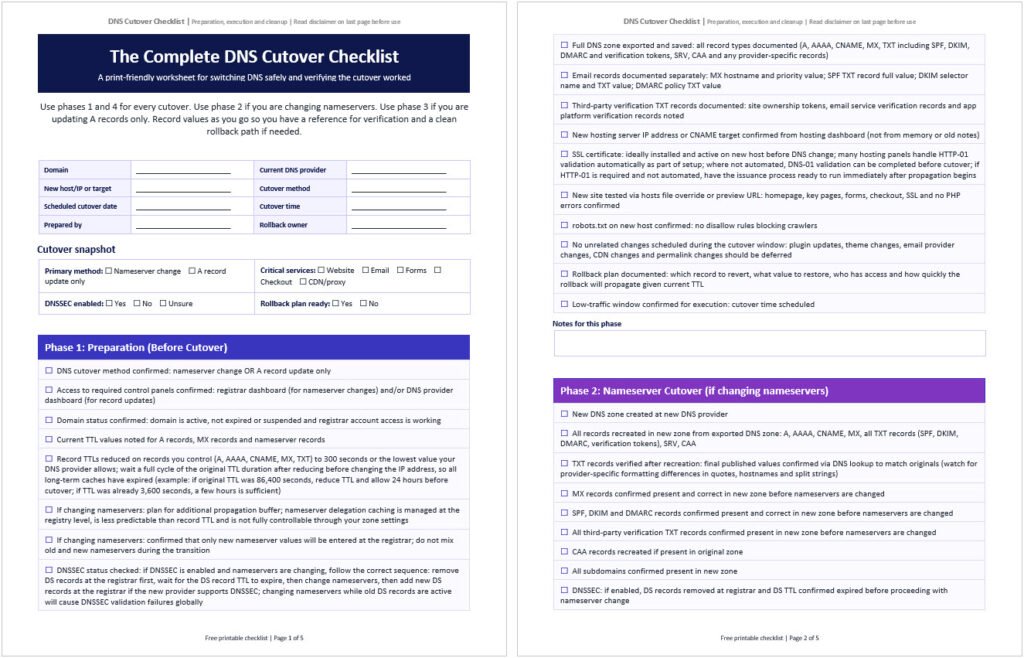
The complete checklist below is available as a free download in PDF and editable Word format. Keep it open while you work through your DNS cutover, print it and tick boxes by hand, or share it with whoever is handling the DNS side of the move.
Both versions include all checklist items across the four phases, with notes fields for recording values and findings as you go. The Word version is fully editable so you can adapt it for your specific DNS setup and cutover method.
Key Takeaways
- TTL reduction should happen at least one full TTL cycle before the cutover; if the original TTL was 86,400 seconds, allow 24 hours after reducing it before proceeding so most resolvers have adopted the shorter cache window
- There are two distinct cutover methods: changing nameservers moves all DNS management while updating individual A records changes only web traffic routing; the preparation steps differ significantly for each
- Lowering record TTLs helps speed up propagation for records you control (A, AAAA, CNAME, MX, TXT) but does not meaningfully control nameserver delegation caching, which is managed at the registry level
- Email records (MX, SPF, DKIM, DMARC) are among the easiest elements to break during a DNS cutover and should be explicitly preserved and verified before and after the change
- SSL should ideally be installed and confirmed active on the new host before DNS is switched; this is not always possible depending on the validation method used
- Propagation is not instant even with a low TTL; some resolvers enforce their own minimum cache times; checking from multiple geographic locations confirms real-world spread rather than just local resolution
- A documented rollback plan written before any change is made is what allows a calm, fast revert if something goes wrong; improvising a rollback under pressure costs time you do not have
A DNS cutover is the specific moment in a hosting change when you update the DNS records that route your domain’s traffic to a new server. Done well, the DNS record change itself is a quick task that visitors and search engines may barely notice.
Done without preparation, it can mean hours of a broken site, a silent email outage or a propagation window that stretches far longer than it needs to.
This checklist is focused on the cutover sequence itself. It is not a full hosting migration guide; that broader process from backup through post-launch monitoring is covered in the website migration checklist.
It is not a DNS audit tool; that is the DNS health check checklist. This is specifically the preparation, execution and verification steps for the moment you switch DNS to a new host, whether that means changing nameservers or updating individual A records.
One of the most important operational rules applies before you start: avoid combining a DNS cutover with unrelated changes such as plugin updates, theme changes, email provider changes, CDN changes or permalink structure changes.
If something breaks, isolating the cause becomes much harder when multiple changes are in flight simultaneously. Make the DNS change in isolation.
If you want foundational context on how DNS and nameservers work before going through these steps, what DNS is and how it works and what nameservers are and how to change them cover both clearly.
For a practical guide on the mechanics of pointing a domain to a new host, how to point a domain to a web host and how to connect domain and hosting are the most directly relevant starting points.
If the domain handles high-volume ecommerce, medical, legal, financial, SaaS, client portal or mission-critical email traffic, have a qualified DNS or hosting professional review the cutover plan before execution.

Understanding What a DNS Cutover Actually Changes
Before you touch any settings, identify which cutover method applies to your situation. The two options are not interchangeable and they require different preparation steps.
Neither method is required over the other; the right choice depends on your DNS setup and what you need to change.
Method 1: Changing nameservers.
This moves DNS management from your current provider to a new one. All DNS records for your domain become managed at the new provider.
The critical implication is that every record currently in your DNS zone (A records, MX records, CNAME records, TXT records for SPF, DKIM and DMARC, and any subdomains or third-party verification records) must be recreated at the new provider before you change the nameservers at your registrar.
If you change nameservers first and recreate records after, there will be a window where your email, website and any other DNS-dependent services are broken or degraded for everyone whose resolver picks up the new nameservers before the records exist.
One important distinction with nameserver changes: lowering record TTLs helps speed up propagation for the records you control in your authoritative zone, but nameserver delegation caching is managed at the parent zone and registry level.
Resolvers and registries cache NS records independently, and that behavior is not something you can fully control through your own record settings. Plan for a longer and less predictable buffer when changing nameservers, and keep the old zone live longer than you would for a simple A record update.
Method 2: Updating individual A records.
This changes only the records that route web traffic to a new hosting server. Your nameservers and DNS management stay exactly where they are.
Many site owners never change nameservers and handle all hosting moves by updating records only. You update the A record for the root domain and the A record or CNAME for www to the new hosting IP.
Some DNS providers also support ALIAS, ANAME or CNAME flattening at the root domain. If your new host provides a hostname rather than an IP address for the root domain, follow your DNS provider’s recommended record type for apex records.
Email records are untouched because they are managed in the same DNS zone that you are already controlling.
This method is cleaner when your email is on a third-party service like Google Workspace or Microsoft 365 and your DNS stays at your registrar or a DNS provider like Cloudflare.
A third scenario worth noting is a CDN or proxy cutover, where traffic is routed through a platform like Cloudflare before reaching your origin server.
If your site is already proxied through Cloudflare (the orange cloud icon is active on the record), changing the origin IP in Cloudflare’s dashboard can take effect very quickly for proxied web traffic because visitors continue resolving to Cloudflare’s edge rather than directly to your origin.
When a record is proxied, the record’s TTL setting is bypassed entirely for visitor traffic; TTL only affects propagation for DNS-only records (grey cloud). It does not affect email or any non-proxied records.
Decide which method you are using and confirm you have access to the right control panels (registrar dashboard for nameserver changes, DNS provider dashboard for record updates) before proceeding.
If you are unsure which approach is right for your setup, how to connect domain and hosting walks through both methods and when each is appropriate.

The Preparation Window - Before Cutover
The preparation window is where most of the actual work happens. The cutover itself is fast. The steps below are what make that speed possible and what give you a safe rollback option if anything goes wrong.
TTL reduction: the timing matters more than most people realize. TTL (time to live) is a value set on individual DNS records that tells resolvers how long to cache that record before checking for an updated value. Most records default to 3,600 seconds (one hour) or 86,400 seconds (24 hours).
When you change a DNS record, resolvers that have recently cached the old value will continue using it until their cached TTL expires.
This means that lowering a record’s TTL immediately before a cutover provides no benefit for resolvers that cached it shortly before at the old high value. A resolver that queries your record one minute before you lower the TTL from 86,400 seconds to 300 seconds will cache the old IP for the full 24 hours regardless of your change.
Reducing record TTLs well in advance and then waiting a full cycle of the original TTL duration before changing the IP is what ensures all long-term caches have naturally expired before the cutover begins.
The recommended approach is to reduce TTLs to 300 seconds at least one full TTL cycle before the cutover, then wait that same duration before making the actual DNS change. If the original TTL was 86,400 seconds, reduce it and allow 24 hours before proceeding.
If the original TTL was already 3,600 seconds, a few hours of buffer is sufficient. If your DNS provider does not allow 300 seconds, use the lowest available TTL it supports. Cloudflare’s TTL documentation explains this caching behavior clearly and covers why “Auto” TTL behaves differently for proxied versus DNS-only records.
A practical staged approach: reduce to 3,600 seconds three days before the cutover, then to 300 seconds one full TTL cycle before. This is more conservative and reduces the chance that any resolver is still holding a very long-cached value when you make the change.
Do not mix old and new nameservers during the transition. If you are changing nameservers, enter only the new nameserver values at your registrar. Leaving one old nameserver alongside one new one creates a mixed delegation that produces inconsistent and difficult-to-diagnose resolution behavior.
The change should be a complete switch, not a partial one.
Full DNS zone export. Before changing anything, open your current DNS provider and document every record: A, AAAA, CNAME, MX, TXT (including SPF, DKIM, DMARC and all verification tokens), SRV, CAA and any provider-specific records.
This is your rollback reference and your source of truth if records go missing after a nameserver change.
Email records documented separately. Write down the exact MX hostname and priority value, the full SPF TXT record, the DKIM selector name and TXT value and the DMARC policy. If you are changing nameservers, these values need to be recreated exactly at the new DNS provider before the nameservers are changed.
If you are updating only A records, these records are untouched, but documenting them confirms they exist and are correct before you start.
SPF, DKIM and DMARC are not records you should casually omit if the domain sends email. They play a major role in authentication, deliverability and anti-spoofing protection.
Third-party verification TXT records (for site ownership, email services and app platforms) must also be present in the new zone if you are changing nameservers. Missing any of these can cause email authentication failures or broken integrations that may not be immediately obvious.
TXT records should be copied exactly, but entered according to the new provider’s formatting rules. Some dashboards automatically add quotation marks or append the domain name to the hostname field, so verify the final published value matches the original using a DNS lookup after recreating the record.
If records are missing in the new zone, resolvers may cache negative responses. Fixing a missing record after the fact may not appear instantly for every resolver because the negative response itself has been cached.
DNSSEC status checked. If DNSSEC is enabled on your domain, a nameserver change requires a specific sequence to avoid breaking resolution globally.
The correct order is: first, remove the DS (Delegation Signer) records at your registrar; second, wait for the DS record’s TTL to expire so that cached copies clear from global resolvers; third, change the nameservers at the registrar; fourth, add new DS records at the registrar once the new DNS provider has set up DNSSEC, if applicable.
Changing nameservers while old DS records are still active causes recursive resolvers to fail DNSSEC validation against the new nameservers, which blocks resolution for a significant portion of users. If DNSSEC is not enabled on your domain, this step does not apply.
New hosting IP or CNAME target confirmed. Log in to your new hosting dashboard and confirm the server IP address or CNAME hostname you will be pointing to. Do not rely on an IP that was noted weeks ago; hosting providers occasionally change server IPs.
Get the current value from the dashboard at the time of cutover preparation.
SSL installed on new host. Ideally, install and confirm an active SSL certificate on the new hosting environment before changing DNS. The HTTP-01 validation method used by Let’s Encrypt requires the domain to already resolve to the server where the certificate is being issued.
Many modern hosting panels handle this automatically as part of the setup process, so in practice it is often seamless. Where it is not automated, DNS-01 validation allows the certificate to be issued before the cutover by adding a TXT record rather than serving a file.
Where HTTP-01 is the only available method and automation is not in place, have the process ready to run immediately after propagation begins. Let’s Encrypt’s Challenge Types documentation explains both validation methods and when each applies. Either way, confirm SSL is active before considering the cutover complete.
New site tested on new host. Confirm the site loads correctly on the new host via a hosts file override or preview URL before the DNS change. Homepage, key pages, contact forms, checkout flows and media should all be verified working.
This is also the time to confirm there are no robots.txt blocks on the new environment that would prevent crawling after the cutover.
Domain status confirmed. Before the cutover window, confirm the domain is active, not expired or suspended and that your registrar account access is working.
A domain that cannot be updated at the registrar during the cutover window is a serious problem to discover mid-process.
Rollback plan documented. Write down exactly what DNS change you would need to revert if the cutover goes wrong: which record, what value to restore, how quickly the TTL will allow that revert to take effect and who has access to make the change.
Having this written down before you start means a rollback decision can be made and executed calmly rather than improvised under pressure.
Low-traffic window confirmed. Check analytics and schedule the cutover for the period of lowest traffic. For most sites that is a weekday overnight or early morning window.

If You Are Changing Nameservers
The nameserver cutover sequence has one non-negotiable rule: the new DNS zone must be complete and verified before you change the nameservers at the registrar.
Not mostly complete. Not complete except for the email records you will add in a minute. Complete.
When you change nameservers, the global DNS system begins delegating queries for your domain to the new nameservers. If any record is missing in the new zone at that point, any resolver that picks up the new nameservers will return an error or no answer for that record.
For email records, that can mean incoming mail is delayed, rejected, bounced or routed incorrectly once querying mail servers begin using the incomplete new zone.
For A records, that means some visitors hit a broken or empty server. Because nameserver delegation caching is controlled at the registry and parent zone level rather than by your own record TTL settings, the spread of a nameserver change can be less predictable than a simple A record update.
Keep the old DNS zone intact at the previous provider until web traffic and email are both confirmed stable on the new environment.
The correct sequence is: create the new DNS zone at the new provider, recreate every record from your exported zone (A, AAAA, CNAME, MX, SPF, DKIM, DMARC, all TXT records, SRV, CAA), verify each record is present and correct in the new zone.
Then and only then change the nameservers at your registrar to the values provided by the new DNS provider.
After changing nameservers, do not delete the old DNS zone. Keep it intact until the cutover is confirmed complete.
For more on how nameserver delegation works and what to confirm at each step, what nameservers are and how to change them covers this in detail.

If You Are Updating A Records Only
The A record update method is simpler in execution because you are changing only the specific records that route web traffic. Your nameservers stay the same, your DNS management stays where it is and every record you do not touch remains unaffected.
Open your DNS provider’s dashboard (registrar DNS panel or a dedicated DNS provider like Cloudflare). Find the A record for the root domain (shown as @ in most interfaces) and update it to the new hosting server’s IP address.
If your new host provides a hostname rather than an IP for the root domain, check whether your DNS provider supports ALIAS, ANAME or CNAME flattening at the apex and follow their recommended approach. Find the www record and update it to the new IP as an A record, or update the CNAME to point to the root domain or the new host’s canonical hostname depending on your setup.
Confirm that TTL is already at 300 seconds (this should have been done in the preparation window).
Before saving any change, look at the full list of records visible in the dashboard. Confirm that the MX records, SPF record, DKIM record and DMARC record are present and unchanged.
Confirm that any subdomain records for active services are unchanged. You are updating only the records that direct web traffic. Everything else should look exactly as it did before you opened the dashboard.
Note the exact time you made the change. Do not make any other DNS changes simultaneously. If something goes wrong, you want to know precisely what changed and when, so the rollback is clean.
For context on how the A record update process fits within the broader domain-to-hosting connection, how to point a domain to a web host covers the mechanics in plain language.

Immediate Post-Cutover Verification
Once the DNS change is made, move through verification checks immediately rather than waiting to see if anything breaks.
With a pre-reduced TTL of 300 seconds, many resolvers begin picking up the new value within minutes, though local caches, ISP behavior and resolver policies can still delay some users. Problems that exist in the new environment will surface quickly for those who have already updated.
DNS propagation check. Use DNSChecker.org to check what your A record resolves to from multiple geographic locations simultaneously. You should begin seeing the new IP appearing at an increasing number of locations within minutes of the change.
For a thorough check, verify the result in two ways: first, query the new authoritative nameservers directly to confirm the record is correct at the source; second, check a public recursive resolver like Google (8.8.8.8) or Cloudflare (1.1.1.1) to confirm real-world resolution behavior.
If some locations still show the old IP after 20 minutes, query your new authoritative nameservers directly first. If they return the correct new IP, the record is correctly configured; any lingering old results are simply upstream resolvers enforcing their own minimum cache times rather than honoring your 300-second TTL.
A genuine configuration error would show the wrong IP at the authoritative level, not just at public recursive resolvers.
Site loading. Test from multiple devices and ideally from a network that is different from the one you used for pre-cutover testing. A mobile phone on cellular data is a useful second network because it often uses a different resolver path than your office or home connection. Confirm the homepage loads, key pages load and media displays correctly.
SSL and HTTPS. Confirm HTTPS is active, the padlock is showing and there are no mixed content warnings. Open the browser developer console and check for any HTTP assets loading on an HTTPS page.
Email within 30 minutes. Send a test email from your domain address to an external inbox and confirm receipt. Send a reply back and confirm receipt at the domain address.
A successful test at 30 minutes confirms the path is working for resolvers that have already updated, but it does not mean all inbound mail is fully transitioned. External mail servers cache MX records aggressively, and some corporate or enterprise mail servers will continue routing to the old destination for hours.
Monitor the inbound logs of both the old and new mail environments for the first 24 hours to ensure no messages are left behind on the old server.
If you changed nameservers, this test confirms the MX records were correctly recreated in the new zone. If you only updated A records, this test confirms email records were untouched.
Forms and transactions. Submit a contact form and confirm the submission is received. Test any checkout or payment flow if applicable.
Old host confirmed active. Confirm the old hosting environment is still running. Some visitors will continue hitting the old server during the propagation window. Keep old hosting active for at least 48 hours after the DNS change.

After Propagation Is Confirmed - Cleanup and Close-Out
Propagation is complete when the old server is no longer receiving meaningful traffic.
Check the old server’s access logs or analytics over the 24 to 48 hours after the cutover. Note that if your site runs behind a CDN or proxy layer, origin traffic may be obscured; check both server-level logs and analytics from both environments to get an accurate picture of where requests are landing.
When traffic has fully shifted to the new server, the propagation window is closed for practical purposes.
Raise TTL back to your normal baseline. A TTL of 300 seconds on stable production records creates unnecessary query load on DNS servers. Once propagation is confirmed complete and the new environment is stable, raise TTL back to your normal steady-state value.
A common choice is 3,600 seconds, but use whatever baseline you normally run. Leaving TTL at 300 indefinitely means every resolver re-queries your authoritative DNS server every 5 minutes instead of hourly.
Run a DNS health check. Now that the cutover is complete, the DNS health check checklist is the right tool for confirming every record type is present, correctly configured and propagating consistently across global resolvers.
This is particularly valuable after a nameserver change where the full zone was recreated, as it confirms nothing was missed or entered incorrectly.
Save a DNS zone backup. Export a backup of the new DNS zone now that it is confirmed complete and correct.
Store this somewhere accessible outside the DNS provider dashboard. It is your reference point for any future changes and your source of truth if records are accidentally deleted.
Cancel old hosting at the right time. Do not cancel old hosting immediately after confirming propagation. Keep the old environment active for at least 48 hours after the cutover is complete as an insurance policy.
Once you are confident the new environment is fully stable and the old server is receiving no meaningful traffic, cancellation is safe. The full guidance on when it is safe to cancel and what to confirm first is covered in the website migration checklist.
Review old DNS provider account before cancelling. If you changed nameservers to a new DNS provider, review the old DNS provider account separately before cancelling it.
Confirm no other domains, zones or services depend on it before closing the account.
Document the cutover. Note the date, which method you used, which records were changed, any issues encountered and how they were resolved.
This documentation is useful the next time a DNS change is needed and is the starting point for adding DNS health to your monthly hosting maintenance routine.

The Complete DNS Cutover Checklist
Use phases 1 and 4 for every cutover. Use phase 2 if you are changing nameservers. Use phase 3 if you are updating A records only.
Record values as you go so you have a reference for verification and a clean rollback path if needed.
This checklist is available as a free downloadable PDF and editable Word document above at Web Hosting Services.
Phase 1: Preparation (Before Cutover)
- ☐ DNS cutover method confirmed: nameserver change OR A record update only
- ☐ Access to required control panels confirmed: registrar dashboard (for nameserver changes) and/or DNS provider dashboard (for record updates)
- ☐ Domain status confirmed: domain is active, not expired or suspended and registrar account access is working
- ☐ Current TTL values noted for A records, MX records and nameserver records
- ☐ Record TTLs reduced on records you control (A, AAAA, CNAME, MX, TXT) to 300 seconds or the lowest value your DNS provider allows; wait a full cycle of the original TTL duration after reducing before changing the IP address, so all long-term caches have expired (example: if original TTL was 86,400 seconds, reduce TTL and allow 24 hours before cutover; if TTL was already 3,600 seconds, a few hours is sufficient)
- ☐ If changing nameservers: plan for additional propagation buffer; nameserver delegation caching is managed at the registry level, is less predictable than record TTL and is not fully controllable through your zone settings
- ☐ If changing nameservers: confirmed that only new nameserver values will be entered at the registrar; do not mix old and new nameservers during the transition
- ☐ DNSSEC status checked: if DNSSEC is enabled and nameservers are changing, follow the correct sequence: remove DS records at the registrar first, wait for the DS record TTL to expire, then change nameservers, then add new DS records at the registrar if the new provider supports DNSSEC; changing nameservers while old DS records are active will cause DNSSEC validation failures globally
- ☐ Full DNS zone exported and saved: all record types documented (A, AAAA, CNAME, MX, TXT including SPF, DKIM, DMARC and verification tokens, SRV, CAA and any provider-specific records)
- ☐ Email records documented separately: MX hostname and priority value; SPF TXT record full value; DKIM selector name and TXT value; DMARC policy TXT value
- ☐ Third-party verification TXT records documented: site ownership tokens, email service verification records and app platform verification records noted
- ☐ New hosting server IP address or CNAME target confirmed from hosting dashboard (not from memory or old notes)
- ☐ SSL certificate: ideally installed and active on new host before DNS change; many hosting panels handle HTTP-01 validation automatically as part of setup; where not automated, DNS-01 validation can be completed before cutover; if HTTP-01 is required and not automated, have the issuance process ready to run immediately after propagation begins
- ☐ New site tested via hosts file override or preview URL: homepage, key pages, forms, checkout, SSL and no PHP errors confirmed
- ☐ robots.txt on new host confirmed: no disallow rules blocking crawlers
- ☐ No unrelated changes scheduled during the cutover window: plugin updates, theme changes, email provider changes, CDN changes and permalink changes should be deferred
- ☐ Rollback plan documented: which record to revert, what value to restore, who has access and how quickly the rollback will propagate given current TTL
- ☐ Low-traffic window confirmed for execution: cutover time scheduled
Phase 2: Nameserver Cutover (if changing nameservers)
- ☐ New DNS zone created at new DNS provider
- ☐ All records recreated in new zone from exported DNS zone: A, AAAA, CNAME, MX, all TXT records (SPF, DKIM, DMARC, verification tokens), SRV, CAA
- ☐ TXT records verified after recreation: final published values confirmed via DNS lookup to match originals (watch for provider-specific formatting differences in quotes, hostnames and split strings)
- ☐ MX records confirmed present and correct in new zone before nameservers are changed
- ☐ SPF, DKIM and DMARC records confirmed present and correct in new zone before nameservers are changed
- ☐ All third-party verification TXT records confirmed present in new zone before nameservers are changed
- ☐ CAA records recreated if present in original zone
- ☐ All subdomains confirmed present in new zone
- ☐ DNSSEC: if enabled, DS records removed at registrar and DS TTL confirmed expired before proceeding with nameserver change
- ☐ Registrar-side settings confirmed: nameservers ready to update, domain not locked against changes
- ☐ New nameserver values obtained from new DNS provider
- ☐ Nameservers updated at domain registrar to new values only: no old nameserver values left alongside new ones
- ☐ Date and exact time of nameserver change recorded
- ☐ Old DNS zone left intact at previous provider: do not delete until web traffic and email are both confirmed stable on new environment
Phase 3: A Record Cutover (if updating records only)
- ☐ TTL confirmed at 300 seconds (or lowest available) before making any record change
- ☐ Root domain A record (@) updated to new hosting server IP address; if host provides a hostname instead of IP, ALIAS, ANAME or CNAME flattening used per DNS provider’s supported record type
- ☐ www A record or CNAME updated to new hosting server IP or canonical hostname
- ☐ AAAA records checked: if the new host does not provide a matching IPv6 address, old AAAA records must be deleted; leaving them intact causes intermittent failures for dual-stack (IPv4/IPv6) users who attempt to connect via the old IPv6 address
- ☐ MX records confirmed unchanged and still pointing to existing mail server
- ☐ SPF, DKIM and DMARC records confirmed present and unchanged
- ☐ Any subdomains that should point to new host updated; all others confirmed unchanged
- ☐ Date and exact time of A record change recorded
- ☐ No other DNS changes made simultaneously
Phase 4: Post-Cutover Verification and Cleanup
- ☐ DNS propagation checked from multiple geographic locations using DNSChecker.org or equivalent
- ☐ Authoritative answer verified: new A record queried directly against the new nameservers to confirm correct at source; if public recursive resolvers still show the old IP, query authoritative nameservers first before assuming a configuration error, as upstream ISPs may enforce their own minimum cache times regardless of your TTL setting
- ☐ Recursive resolution verified: A record confirmed from Google public DNS (8.8.8.8) and Cloudflare DNS (1.1.1.1) to confirm real-world resolution behavior
- ☐ Site loading correctly on new host confirmed from multiple devices
- ☐ Site tested from a network separate from pre-cutover testing (mobile cellular data recommended as it often uses a different resolver path)
- ☐ HTTPS active: padlock visible, no certificate warnings, no mixed content in browser console
- ☐ Test email sent from domain address to external inbox and received successfully
- ☐ Test reply sent back to domain address and received successfully
- ☐ Inbound mail server logs monitored on both old and new environments for the first 24 hours: external mail servers cache MX records aggressively and some will continue routing to the old server for hours after the cutover; confirm no messages are left stranded on the old mail server
- ☐ Contact form submitted and submission confirmed received
- ☐ Checkout or payment flow tested if applicable
- ☐ Old hosting environment confirmed still active during propagation window
- ☐ DNS propagation confirmed complete: old server receiving no meaningful traffic confirmed by checking server-level logs and analytics from both environments; CDN or proxy layers may obscure origin traffic and both sources should be checked
- ☐ TTL raised back to normal steady-state value (3,600 seconds is a common choice; use your normal baseline)
- ☐ Full DNS health check run to confirm all record types are correctly configured at new provider
- ☐ DNS zone backup saved from new provider
- ☐ Old hosting cancelled only after traffic has fully shifted and rollback is no longer needed
- ☐ Old DNS provider account reviewed separately before cancellation: confirm no other domains, zones or services depend on it
- ☐ Cutover documented: method used, records changed, date completed, any issues encountered and resolved
Need Help Planning or Executing a DNS Cutover?
A well-prepared DNS cutover is straightforward. A rushed one without a documented DNS zone, a confirmed rollback plan or an SSL certificate in place on the new host is how sites end up with broken email, visitor-facing errors and a stressful hour of debugging at an inconvenient time.
At Web Hosting Services, DNS configuration and cutover planning is one of the most common things we help businesses with. Whether you want a second set of eyes on your DNS zone before the change, help executing the cutover with a tested rollback plan in place, or assistance cleaning up after a nameserver change that did not go as planned, contact us and describe your setup.
We will tell you exactly what needs to happen and in what order.
References & Additional Resources
- Cloudflare. “DNS Record TTL.” Cloudflare Developer Documentation.
- Cloudflare. “What is DNS?” Cloudflare Learning Center.
- DNSChecker.org. “DNS Propagation Check.“
- Let’s Encrypt. “Challenge Types.“
- Google Search Central. “Site Move Without URL Changes.“
- ICANN. “Domain Name System (DNS) Resources.“
Tagged In:
- A Records, AAAA Records, CAA Records, DNS, DNS Configuration, DNS Cutover, DNS Management, DNS Propagation, DNS Records, DNS Settings, DNS Zone, DNSSEC, Domain Connection, Domain Name System, Domain Names, Domain Pointing, Domain Transfer, Hosting Fundamentals, Hosting Reliability, Hosting Security, Hosting Setup, IPv6, MX Records, Name Servers, Nameservers, Registrar Settings, Rollback Planning, SSL Certificates, TTL, Web Hosting, Website Hosting, Website Launch, Website Migration