









Article Contents
- 1. DNS Health Check Checklist - Verify Your DNS Records Are Set Up Correctly - Free PDF & Word Download, Edit & Print
- 1.1. Download the Free DNS Health Check Checklist
- 1.2. Key Takeaways
- 1.3. When to Run a DNS Health Check
- 1.4. Web Traffic Records - A Records and CNAMEs
- 1.5. Nameserver Records
- 1.6. Email Records - MX, SPF, DKIM and DMARC
- 1.7. TTL Values - Are They Set Sensibly?
- 1.8. Stale and Dangling Records - The Housekeeping Check
- 1.9. Propagation and Final Verification
- 1.10. The Complete DNS Health Check Checklist
- 1.11. Need Help Diagnosing or Fixing a DNS Issue?
- 1.12. References & Additional Resources
- 1.13. Tagged In:
DNS Health Check Checklist - Verify Your DNS Records Are Set Up Correctly - Free PDF & Word Download, Edit & Print
DNS problems are usually silent until they are not. This checklist helps you confirm every critical record is present, accurate and pointing where it should before something breaks.
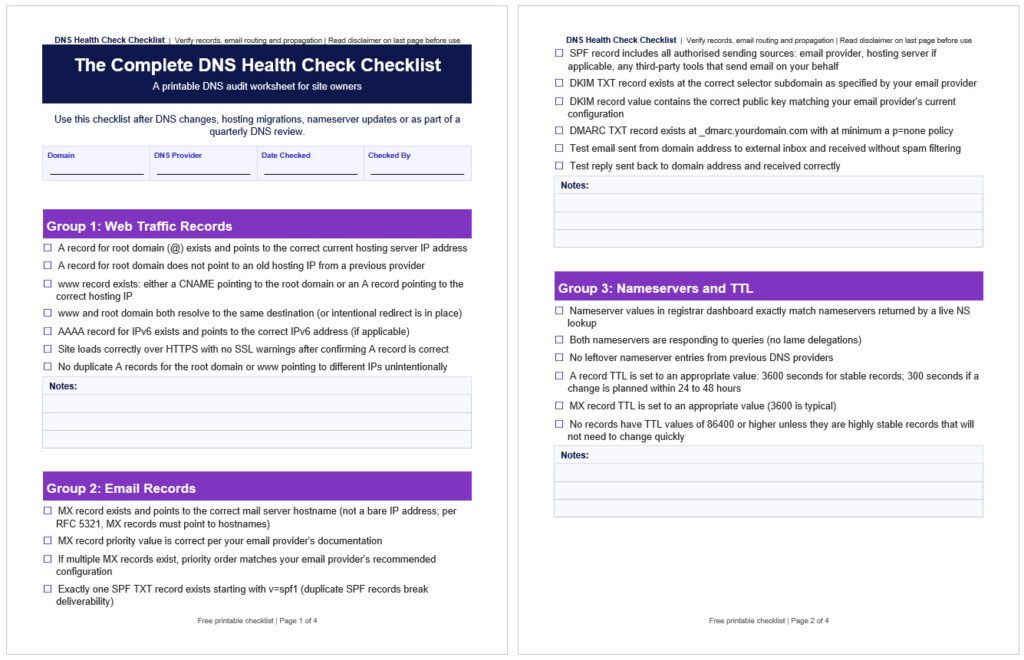
Download the Free DNS Health Check Checklist
This checklist is available as a free download in PDF and editable Word format. Keep it open while you work through your DNS audit, print it and tick boxes by hand, or share it with whoever manages your domain or hosting account.
Both versions include all 40 checklist items across the four groups: web traffic records, email records, nameservers and TTL, and housekeeping and propagation.
The Word version is fully editable so you can add notes, flag items for follow-up or adapt the checklist for your specific DNS setup and provider.
Key Takeaways
- DNS misconfiguration is one of the most common causes of email outages, site downtime and deliverability failures; most problems are invisible until they cause something to break
- A DNS health check should be run after any DNS change, after a hosting migration, after changing nameservers and at least quarterly as routine maintenance
- Web traffic records (A and CNAME) and email records (MX, SPF, DKIM, DMARC) need to be checked separately because they control completely different services
- Stale or dangling records pointing to old IPs or decommissioned services accumulate quietly and create both security and reliability risks
- TTL values that are too high slow down recovery after a DNS change; values that are too low create unnecessary query load on DNS servers
- Free tools like Google Admin Toolbox, MXToolbox and DNSChecker can verify most records without any technical knowledge required
DNS is the infrastructure layer that connects your domain name to everything: your website, your email, your third-party services and your SSL certificate. When it is working correctly it is completely invisible. When something is wrong, the symptoms are often confusing. Email bounces with no clear explanation. The site loads for some visitors but not others. A contact form stops submitting. An SSL certificate fails to renew. In most of these cases the DNS records are the actual problem.
The difficulty with DNS issues is that they rarely announce themselves clearly. A misconfigured SPF record does not produce an obvious error message; it silently causes your outgoing email to land in spam folders or get rejected entirely. A stale A record pointing to an old hosting server IP does not throw a 404; it causes inconsistent loading for visitors whose resolvers are still caching the old value. A missing DMARC record does not break anything immediately; it leaves your domain open to spoofing and phishing attacks.
This checklist is a diagnostic tool for site owners who want to confirm their DNS is correctly configured. It is not a setup guide and it is not written for developers or sysadmins. It is for anyone who has recently made DNS changes, switched hosting providers, changed nameservers, set up a new email provider or simply wants to verify everything is correct before a problem surfaces. For foundational context on how DNS works before going through the checks, what DNS is and how it works and what nameservers are and how they work are useful starting points.

When to Run a DNS Health Check
A DNS health check is most valuable immediately after a change and periodically during normal operations. The following situations should each trigger a full check.
After any DNS change. Any time you update an A record, add a TXT record, change MX values or modify nameservers, run a health check once propagation is complete. Changes that look correct in the dashboard can still have errors: a typo in a hostname, a missing trailing dot, a duplicate record that conflicts with an existing one.
After a hosting migration. Moving to a new hosting provider involves updating A records or nameservers, and sometimes both. Email records are the most commonly broken element in a hosting migration. A health check after migration confirms web traffic and email are both routing correctly to the new environment. The full migration process is covered in the website migration checklist.
After changing nameservers. Changing nameservers moves DNS management from one provider to another. Any records that were not recreated at the new provider before the nameserver change will be missing after it propagates. A health check immediately after propagation confirms nothing was lost. For a focused walkthrough of the nameserver change process, see what nameservers are and how to change them.
After setting up or changing an email provider. Switching from one email provider to another (Google Workspace to Microsoft 365, for example, or vice versa) requires updating MX records, SPF records and DKIM records. Missing or conflicting records after this type of change are a common cause of email delivery failures.
After adding a new third-party service. Many services (marketing platforms, analytics tools, security scanners, CDNs) require you to add a DNS TXT or CNAME record to verify domain ownership. Over time these accumulate. A quarterly audit identifies records for services that are no longer in use and can safely be removed.
Quarterly as routine maintenance. Even if nothing has changed intentionally, DNS zones drift. Hosting providers change IPs. Services get decommissioned. Third-party tools get cancelled. A quarterly review catches stale records before they become a problem.
When troubleshooting unexplained issues. Intermittent email delivery failures, inconsistent site loading across different networks, SSL certificate renewal failures and contact form submission errors are all worth investigating at the DNS layer before assuming the problem is in the application or hosting configuration.

Web Traffic Records - A Records and CNAMEs
Web traffic records are the DNS entries that tell browsers where to find your website. They are the most direct connection between your domain name and your hosting server.
The A record for the root domain (often shown as @ in your DNS panel) maps your bare domain (example.com) to your hosting server’s IPv4 address. Confirm this record exists, that the IP address it points to is the correct current IP for your hosting server and that it is not pointing to an old server from a previous host.
The www record controls how the www subdomain resolves. This is typically either a CNAME record pointing to the root domain or a separate A record pointing to the same hosting IP. Both approaches work. What matters is that www resolves correctly and consistently with the root domain. Some sites have a www CNAME pointing to a CDN or load balancer hostname rather than directly to an IP; confirm this is intentional and that the destination is correct.
If your site supports IPv6, you may also have an AAAA record for the root domain. Verify this points to the correct IPv6 address for your hosting environment if it exists.
To verify these records without any technical tools, go to the Google Admin Toolbox DNS lookup or use a simple DNS lookup tool. Enter your domain and check what IP the A record resolves to. Compare that IP against what your hosting provider shows as your server IP in your hosting dashboard. They should match exactly.
For more on how A records and DNS routing work in the context of connecting a domain to hosting, how to connect domain and hosting and how to point a domain to a web host cover this in plain language.

Nameserver Records
Nameservers are the DNS servers that host your authoritative DNS zone. They are what the rest of the internet queries when it needs to know where your domain’s records live. If the nameservers listed at your registrar do not match the servers actually hosting your DNS zone, you have a delegation problem that can cause inconsistent resolution, slow lookups or total failure for some resolvers.
What to verify: the nameserver values in your domain registrar’s dashboard should exactly match the nameserver values returned when you do a live NS lookup for your domain. If you changed nameservers recently and this check shows a mismatch, propagation may still be in progress. If it has been more than 48 hours and there is still a mismatch, the nameserver change may not have saved correctly at the registrar.
Both nameservers should be responding. Most domains have two nameservers for redundancy. Both should respond to queries. A nameserver listed in your zone that does not respond is called a lame delegation and can cause intermittent resolution failures. This is worth checking specifically if you have recently changed DNS providers, as old nameserver entries are sometimes left behind.
Remove leftover nameservers from previous providers. If you have switched DNS providers more than once, it is worth opening your registrar dashboard and confirming the nameserver list contains only the current provider’s nameservers. Leftover values from old providers are harmless if the old provider still resolves queries for your domain, but they become a problem if that provider has decommissioned the nameserver address.

Email Records - MX, SPF, DKIM and DMARC
Email DNS records are the most consequential records on your domain after the A record. A misconfigured email record does not just cause inconvenience; it can mean missed leads, rejected messages, deliverability failures or your domain being used to send phishing emails without your knowledge. Each of the four record types has a specific function and a specific failure mode.
MX records tell the internet which mail server to deliver incoming email to. Confirm your MX record exists, that it points to a hostname (not a bare IP address; per RFC 5321, MX records must point to hostnames, not IPs, and records pointing to IP addresses directly will be rejected by compliant mail servers), that the hostname it points to is correct for your email provider and that the priority value is set correctly. If you have multiple MX records (for redundancy), confirm the priority order matches your email provider’s recommended configuration.
SPF records specify which mail servers are authorised to send email on behalf of your domain. The SPF record is a TXT record starting with v=spf1. Verify it exists and that it accurately lists all services that send email on your behalf: your hosting server, your email provider and any third-party tools like a CRM, marketing platform or transactional email service.
One critical check specific to SPF: confirm there is only one SPF record on your domain. The SPF specification only allows a single v=spf1 record per domain. If you have two, receiving mail servers may reject or ignore both, which can cause email delivery failures that are extremely difficult to diagnose. This is more common than it sounds. The pattern I see repeatedly is a client who set up their original SPF record years ago, then added a new email tool and followed the provider’s instructions which included adding a second SPF record rather than updating the existing one.
DKIM records provide a cryptographic signature that receiving mail servers use to verify messages are genuinely from your domain. The DKIM record is a TXT record at a selector subdomain (something like selector1._domainkey.yourdomain.com). Verify the record exists, that the selector name matches what your email provider specifies and that the record value contains the correct public key. If you have recently changed email providers, confirm the old DKIM record has been replaced or removed and the new one is in place.
DMARC records tell receiving mail servers what to do with messages that fail SPF or DKIM checks. The DMARC record is a TXT record at _dmarc.yourdomain.com. At minimum, confirm the record exists with a policy of at least p=none (which monitors failures without rejecting email). A missing DMARC record means your domain has no protection against spoofing and phishing using your domain name. Over time, the policy should be moved toward p=quarantine or p=reject as you gain confidence in your email authentication setup. MXToolbox provides free checks for all four of these records and flags common configuration errors clearly.

TTL Values - Are They Set Sensibly?
TTL (time to live) is the value that tells DNS resolvers how long to cache a record before checking for an updated value. It is measured in seconds. Most DNS records default to 3,600 seconds (one hour) or higher. Some providers default to 86,400 seconds (24 hours). These defaults are not wrong for stable records, but they become a problem when you need to make a DNS change quickly.
If your A record has a TTL of 86,400 seconds and you need to point it to a new server in an emergency, resolvers that have recently cached the record will continue pointing visitors to the old server for up to 24 hours regardless of what you do in your DNS panel. With a TTL of 300 seconds, the same change propagates to most resolvers within five to ten minutes.
What to check: review the TTL values on your A records, MX records and nameserver records. For most stable sites with no planned changes, 3,600 seconds (one hour) is a reasonable default that balances performance and flexibility. If you know a change is coming, reduce TTL to 300 seconds at least 24 to 48 hours before the change so resolvers flush the cache in advance. After the change is confirmed stable, raise TTL back to the normal value.
Very low TTL values (under 300 seconds) on stable records create unnecessary query load on DNS servers and should be avoided outside of planned migration windows. Very high TTL values (86,400 or higher) on records that might need to change are worth lowering to a more flexible default.

Stale and Dangling Records - The Housekeeping Check
DNS zones accumulate records over time. Hosting providers get changed and the old A records are not removed. Third-party services get cancelled but their CNAME verification records stay in the zone. Email providers get replaced but the old MX entry remains alongside the new one. Each of these leftover records is either harmless, confusing or actively dangerous depending on the specific scenario.
Old A records pointing to previous hosting IPs are mostly harmless once propagation is complete, but they can cause confusion during troubleshooting and should be cleaned up. Open your DNS zone and confirm there is only one A record for the root domain and one for www, both pointing to the current hosting IP.
Dangling CNAME records are the most serious housekeeping issue. A dangling CNAME is a record pointing to a hostname at a third-party service that no longer exists. For example, a CNAME pointing to a subdomain at a SaaS platform you stopped using. If that platform allows new accounts to claim that hostname, someone else can effectively take control of your subdomain. This is called a subdomain takeover and it is a genuine security risk that is widely underappreciated by site owners who are not coming from a security background. Review every CNAME record in your zone and confirm the destination hostname is still active and under your control.
Old MX records from previous email providers should be removed once the new provider’s records are confirmed working. Conflicting MX records can cause some email to route to the wrong mail server.
Old SPF entries for email services you no longer use should be removed from your SPF record. An SPF record that authorises a sending source you no longer control means someone with access to that old service could potentially send email that appears to come from your domain.
Third-party TXT verification records for services that are no longer in use (old marketing platforms, cancelled analytics tools, security scanners you tried once) are low risk but worth removing for cleanliness. A long list of unexplained TXT records makes DNS management harder and can occasionally cause issues when TXT record responses exceed DNS packet size limits.

Propagation and Final Verification
After making any DNS change, the updated values need to propagate through the global DNS system before every visitor and every service sees the new configuration. Propagation is not instant and it is not uniform. Different resolvers around the world will pick up the change at different times depending on their cached TTL values, their geographic location and their own update cycles.
The most reliable way to check propagation is to query from multiple locations rather than relying on your own network. Your local resolver may have cached the old value for hours while resolvers in other regions have already updated. DNSChecker.org shows you what a specific DNS record resolves to from dozens of locations around the world simultaneously. A consistent result across all locations means propagation is complete for that record type. Inconsistent results across regions mean propagation is still in progress.
When checking propagation, verify the specific records that changed rather than just checking whether the site loads. A record changes should be checked as A record lookups. Nameserver changes should be checked as NS lookups. MX record changes should be checked as MX lookups. A site loading in your browser does not confirm that MX records are correct or that nameserver delegation is complete.
Two resolvers worth checking manually are Google’s public DNS at 8.8.8.8 and Cloudflare’s at 1.1.1.1. Both are widely used and update relatively quickly after a TTL expires. If both of these return the correct values, the vast majority of your visitors are seeing the correct DNS. For a deeper understanding of why propagation takes time and what you can do to speed it up, how to point a domain to a web host covers TTL and propagation in practical terms.

The Complete DNS Health Check Checklist
Use this checklist after any DNS change, after a hosting migration, after changing nameservers or as part of a routine quarterly review. Verify each item using your DNS provider’s dashboard, a DNS lookup tool or a free checker like MXToolbox or DNSChecker.org.
This checklist is available as a free downloadable PDF and editable Word document above at Web Hosting Services.
Group 1: Web Traffic Records
- ☐ A record for root domain (@) exists and points to the correct current hosting server IP address
- ☐ A record for root domain does not point to an old hosting IP from a previous provider
- ☐ www record exists: either a CNAME pointing to the root domain or an A record pointing to the correct hosting IP
- ☐ www and root domain both resolve to the same destination (or intentional redirect is in place)
- ☐ AAAA record for IPv6 exists and points to the correct IPv6 address (if applicable)
- ☐ Site loads correctly over HTTPS with no SSL warnings after confirming A record is correct
- ☐ No duplicate A records for the root domain or www pointing to different IPs unintentionally
Group 2: Email Records
- ☐ MX record exists and points to the correct mail server hostname (not a bare IP address; per RFC 5321, MX records must point to hostnames)
- ☐ MX record priority value is correct per your email provider’s documentation
- ☐ If multiple MX records exist, priority order matches your email provider’s recommended configuration
- ☐ Exactly one SPF TXT record exists starting with v=spf1 (duplicate SPF records break deliverability)
- ☐ SPF record includes all authorised sending sources: email provider, hosting server if applicable, any third-party tools that send email on your behalf
- ☐ DKIM TXT record exists at the correct selector subdomain as specified by your email provider
- ☐ DKIM record value contains the correct public key matching your email provider’s current configuration
- ☐ DMARC TXT record exists at _dmarc.yourdomain.com with at minimum a p=none policy
- ☐ Test email sent from domain address to external inbox and received without spam filtering
- ☐ Test reply sent back to domain address and received correctly
Group 3: Nameservers and TTL
- ☐ Nameserver values in registrar dashboard exactly match nameservers returned by a live NS lookup
- ☐ Both nameservers are responding to queries (no lame delegations)
- ☐ No leftover nameserver entries from previous DNS providers
- ☐ A record TTL is set to an appropriate value: 3600 seconds for stable records; 300 seconds if a change is planned within 24 to 48 hours
- ☐ MX record TTL is set to an appropriate value (3600 is typical)
- ☐ No records have TTL values of 86400 or higher unless they are highly stable records that will not need to change quickly
Group 4: Housekeeping and Propagation
- ☐ No A records pointing to old hosting server IPs from previous providers
- ☐ All CNAME records reviewed: every destination hostname is confirmed active and under your control
- ☐ No dangling CNAME records pointing to decommissioned third-party service hostnames
- ☐ No MX records from previous email providers remaining alongside current provider’s records
- ☐ SPF record does not include sending sources for email services no longer in use
- ☐ Old DKIM records from previous email providers removed
- ☐ TXT verification records for cancelled third-party services reviewed and removed if no longer needed
- ☐ DNS propagation checked from multiple geographic locations using DNSChecker.org or equivalent
- ☐ A record returns consistent results from multiple regions
- ☐ MX record returns consistent results from multiple regions
- ☐ Nameserver records return consistent results from multiple regions
- ☐ Results consistent from both Google public DNS (8.8.8.8) and Cloudflare DNS (1.1.1.1)
Need Help Diagnosing or Fixing a DNS Issue?
DNS problems are usually straightforward once you know where to look. But when records conflict, propagation behaves unexpectedly or email stops working after a change that looked correct, it helps to have someone who has worked through these scenarios many times take a look at the zone.
At Web Hosting Services, DNS record configuration and cleanup is one of the most common things we help businesses with; whether that is a full zone audit, fixing a broken email setup after a migration, removing stale records or setting up SPF, DKIM and DMARC correctly from scratch. If something is not working or you want a second set of eyes on your DNS zone before making a change, contact us and describe what you are seeing. We will tell you exactly what needs to be fixed.
References & Additional Resources
- Cloudflare. “What is DNS?” Cloudflare Learning Center.
- MXToolbox. “Email Header Analyzer, Blacklist Check and DNS Tools.”
- DNSChecker.org. “DNS Propagation Check.”
- IETF. “Simple Mail Transfer Protocol.” RFC 5321.
- Cloudflare. “DNS Concepts.” Cloudflare Developer Documentation.
- ICANN. “Domain Name System (DNS) Resources.”
Tagged In:
- A Records, Authoritative Name Servers, DNS, DNS Configuration, DNS Health Check, DNS Management, DNS Propagation, DNS Records, DNS Settings, Domain Connection, Domain Name System, Domain Names, Hosting Fundamentals, Hosting Reliability, Hosting Security, MX Records, Name Servers, SSL Certificates, Web Hosting, Website Hosting