









Article Contents
- 1. Web Hosting Security Checklist - Audit and Harden Your Hosting Environment
- 1.1. Download the Free Web Hosting Security Checklist (PDF or Word Doc)
- 1.2. Key Takeaways
- 1.3. SSL and HTTPS Configuration
- 1.4. Account Access and Authentication Controls
- 1.5. Software Updates and CMS Hardening
- 1.6. File Permissions and Server Hardening
- 1.7. Email Authentication - SPF, DKIM and DMARC
- 1.8. Backups, Malware Scanning and Firewall Protection
- 1.9. The Complete Web Hosting Security Checklist
- 1.10. Want Your Hosting Environment Audited by Someone Who Does This Regularly?
- 1.11. References & Additional Resources
- 1.12. Tagged In:
Web Hosting Security Checklist - Audit and Harden Your Hosting Environment
Many hosting security problems are not sophisticated. They are the result of default settings that were never changed, updates that were never applied and access controls that were never reviewed. This checklist audits the hosting and account layer where many preventable security failures begin.
Download the Free Web Hosting Security Checklist (PDF or Word Doc)
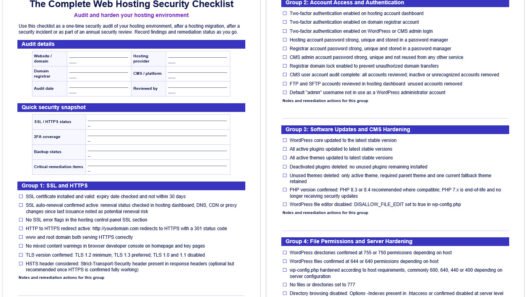
The complete checklist on this page is available as a free download in PDF and editable Word format. Use it as a one-time security audit, work through it after a hosting migration or run it as an annual review of your hosting environment’s security posture.
Both versions include checklist items across the six security groups, with notes fields for recording findings and remediation actions. The Word version is fully editable so you can adapt it for your specific hosting environment and track what has been addressed.
Key Takeaways
- The hosting account itself is an attack surface; two-factor authentication on the hosting dashboard, registrar account and CMS admin login are three separate controls each of which matters independently
- Vulnerable plugins are the largest category of disclosed WordPress software vulnerabilities; keeping plugins updated closes the window that many automated attacks exploit
- Common WordPress file permission baselines are 755 or 750 for directories and 644 or 640 for files depending on the host; wp-config.php should be hardened more strictly; no file or directory should be set to 777 in production
- Directory browsing disabled, PHP execution blocked in the uploads directory and unnecessary default files removed are three hardening steps that eliminate specific attack vectors without affecting site functionality
- Email authentication (SPF, DKIM and DMARC) makes it harder for attackers to send messages that appear to come from your domain and gives receiving servers published guidance for handling failed authentication
- Backups are a security control as much as a reliability control; a verified, restorable backup is the recovery path if every other security measure fails
Many site compromises are not the result of sophisticated attacks.
According to Wordfence’s 2024 Annual WordPress Security Report, plugins accounted for the dominant category of disclosed WordPress software vulnerabilities, and brute-force login attempts remain a common automated threat against WordPress sites.
Both are preventable with basic controls that most sites do not have consistently in place.
This checklist is a hosting-infrastructure security audit.
It focuses on the server and account layer: SSL configuration, account access controls, file permissions, server hardening settings, email authentication and backup verification.
It is distinct from the monthly hosting maintenance routine (which covers recurring security tasks as part of a broader cadence) and from an SSL-specific checklist (which covers certificate installation and renewal in detail).
This is the one-time or periodic security audit of the hosting environment itself.
If your current hosting plan does not include the security features covered here, what managed hosting provides and who it suits explains what a managed environment typically includes at the security layer.
For evaluating whether your current provider meets a reasonable security baseline, the framework in our hosting provider verification checklist covers security features as part of the pre-purchase evaluation.
SSL and HTTPS Configuration
An SSL certificate that is installed but not properly enforced provides incomplete protection.
The full security audit covers certificate status, HTTPS enforcement, TLS version and the headers that prevent browsers from downgrading connections.
SSL certificate active and auto-renewing
Confirm the certificate is installed, valid and not within 30 days of expiry.
On most shared hosting plans, certificates are issued via Let’s Encrypt and set to auto-renew.
On many shared hosting plans, Let’s Encrypt auto-renewal depends on the domain still resolving to the server or platform that manages the certificate.
DNS, CDN, proxy or validation-method changes can cause renewal failures, so confirm renewal status in the hosting control panel.
Check the SSL section of your hosting dashboard for any error flags.
If auto-renewal is not confirmed, the certificate will lapse and visitors will see an immediate browser warning.
HTTP to HTTPS redirect active
Typing http://yourdomain.com into a browser should automatically redirect to https://yourdomain.com.
Without this redirect, some visitors and links will load the unsecured version of the site.
Confirm the redirect is a 301 (permanent) not a 302 (temporary).
In WordPress this is typically set via the .htaccess file or through the hosting control panel.
No mixed content warnings
A page that loads over HTTPS but includes assets (images, scripts, stylesheets) referenced via HTTP URLs serves mixed content.
Modern browsers may block the insecure assets or display a degraded security indicator.
Check in browser developer tools: open the Console tab on your homepage and key interior pages and look for mixed content warnings.
These are most commonly caused by hardcoded HTTP URLs in theme templates or old content.
TLS version
TLS 1.2 should be the minimum supported version on any modern production site.
TLS 1.3 is preferred where available and offers improved performance alongside stronger security.
TLS 1.0 and 1.1 are deprecated and should be disabled.
Most hosting providers have disabled these older versions by default, but it is worth confirming.
You can check your server’s TLS configuration using securityheaders.com or an SSL test tool.
HSTS header consideration
HTTP Strict Transport Security (HSTS) tells browsers to only communicate with the site over HTTPS for a defined period, preventing protocol downgrade attacks.
Enabling HSTS via the Strict-Transport-Security response header is a hardening step beyond standard HTTPS enforcement.
If you choose to enable it, confirm HTTPS is fully working across the entire site first; an HSTS misconfiguration on a site with mixed content issues can cause access problems.

Account Access and Authentication Controls
Account access is where many non-technical compromises begin. A hosting account with a weak or reused password, no two-factor authentication and a forgotten admin account for a contractor who left six months ago is a site waiting to be breached.
Each access point is a separate control that needs to be audited independently.
Two-factor authentication on the hosting account
The hosting dashboard is where someone can change DNS, delete files, access databases and cancel your plan. Enable two-factor authentication if your provider supports it.
If they do not offer 2FA on the hosting account, note that as a security gap in your provider evaluation.
Two-factor authentication on the domain registrar account
Whoever controls the registrar account controls the domain name. A compromised registrar account can redirect your domain, intercept email and take your entire site offline.
Enable 2FA on the registrar account and confirm the registrar lock is enabled to prevent unauthorized domain transfers.
Two-factor authentication on the CMS admin login
WordPress and most CMS platforms support 2FA via plugins. The admin login is a common brute-force target; 2FA dramatically reduces the chance that a brute-force or credential-stuffing attempt succeeds, even if a password is weak or compromised.
Admin account passwords strong and unique
Every account with hosting or CMS access should use a strong, unique password stored in a password manager. Reused passwords across services mean that a breach at any one service exposes all others that share the same credentials.
Review every admin-level account and reset any password that is weak, old, shared or reused.
User account audit
Open the CMS user management section and review every account. Remove accounts belonging to former employees, contractors or developers whose projects are complete.
Confirm admin-level access is limited to people who genuinely need it. A forgotten admin account with a weak password bypasses every other security control on the site.
Confirm the same principle applies to FTP and SFTP accounts in the hosting dashboard.
Default admin username changed
WordPress installations that retain “admin” as the administrator username are a softer target for brute-force attacks because the attacker already knows half the credential pair.
If the primary admin account username is “admin,” create a new admin account with a different username, transfer content ownership to the new account and delete the “admin” account.
Changing the username is not a replacement for strong passwords, 2FA and login rate limiting, but it removes an easy known target.

Software Updates and CMS Hardening
Unpatched plugins and themes are one of the largest exploitable software attack surfaces on WordPress sites.
When a serious vulnerability is disclosed and a patch is released, exploitation can follow quickly, especially for widely installed plugins.
A plugin with a known unpatched vulnerability and an available update is not a security risk in theory; it is a measurable exposure with a documented timeline.
WordPress core updated to the latest stable version
WordPress core security releases patch known vulnerabilities. Running an outdated core version is one of the most straightforward risks to close.
Check the WordPress dashboard Updates page and apply any available core updates. Test on staging before applying to a live site with complex plugin configurations.
All active plugins updated
Plugins are the most common breach vector for WordPress software vulnerabilities.
Review the installed plugins list and confirm every active plugin is on the latest stable version.
If a plugin has not received an update for over two years and has an open vulnerability report, consider replacing it with a maintained alternative.
All active themes updated
Theme vulnerabilities are less common than plugin vulnerabilities but equally exploitable.
Update all active themes to their latest versions.
Deactivated plugins deleted
A plugin that is installed but deactivated is still present on the server and can still contain exploitable code. It is not protected by deactivation.
Delete any plugin that is not actively in use.
If you are unsure whether a plugin will be needed again, note it and delete it anyway; reinstallation takes minutes.
Unused themes deleted
Delete unused themes, but consider keeping one current default WordPress theme as a fallback.
Keep any parent theme required by the active child theme.
Default WordPress themes that are installed but unused beyond that should be deleted.
WordPress file editor disabled
WordPress includes dashboard-based theme and plugin file editors when file editing is enabled.
The exact menu names vary by WordPress version and configuration, but these editors allow any admin user to modify PHP files directly from the dashboard.
If an admin account is compromised, the file editor is a direct path to injecting malicious code.
Disable it by adding the line define(‘DISALLOW_FILE_EDIT’, true); to wp-config.php.
File Permissions and Server Hardening
File permissions determine who can read, write and execute files on the server.
Incorrect permissions are one of the most common configurations that make a site easier to compromise.
The correct baseline permissions for WordPress are documented in the WordPress Advanced Administration Handbook on file permissions: common baselines are 755 or 750 for directories and 644 or 640 for files, depending on the hosting environment.
wp-config.php should be hardened more strictly where possible, with 600, 640, 440 or 400 depending on server configuration. No directory or file should ever be set to 777 in a production environment.
What these numbers mean in practice: 755 on a directory means the owner can read, write and execute; the group and public can read and execute but not write. 644 on a file means the owner can read and write; the group and public can only read.
Stricter settings on wp-config.php reduce the risk that the file’s database credentials are accessible to other processes or users on the server.
This matters particularly on shared hosting, where weaker isolation or misconfiguration can make overly permissive wp-config.php permissions more risky.
WordPress’s own documentation recommends reviewing these settings in the context of your specific hosting environment rather than applying a single universal value.
You can review and adjust file permissions via cPanel’s File Manager or an FTP client.
Check File Manager > right-click a file or directory > Permissions to see the current value and change it.
Do not recursively apply 644 to directories or 755 to files; apply directory and file permissions separately using the “Apply to directories only” and “Apply to files only” options.
Directory browsing disabled
If directory browsing is enabled, a visitor who navigates to a directory URL (such as yourdomain.com/wp-content/uploads/) can see a list of all files in that directory.
This exposes file paths, plugin and theme names and potentially sensitive file names.
On Apache, directory browsing is disabled by adding Options -Indexes to the .htaccess file.
Most managed hosting environments disable this by default; confirm it is in place.
PHP execution blocked in the uploads directory
The wp-content/uploads/ directory needs write access for WordPress to save uploaded files, but it should never be able to execute PHP files.
If an attacker can upload a PHP file to the uploads directory and then execute it by visiting the URL, they have server-side code execution.
On Apache, this is commonly handled with an .htaccess rule in the uploads directory.
On NGINX, LiteSpeed or managed hosting, use the provider’s recommended server-level rule or security setting.
Many managed hosts implement this by default; confirm it is active.
Unnecessary default files removed
WordPress installations include some files that are not required for operation and can expose information about the installation.
Readme.html in the root directory discloses the WordPress version number. License.txt is informational only.
Both can be deleted without affecting site functionality.
Note that these files may reappear after WordPress core updates, so include them in periodic reviews.
The xmlrpc.php file enables remote API calls and has historically been a target for brute-force amplification attacks; if you do not use remote publishing or the Jetpack connection, disabling or blocking xmlrpc.php is a reasonable hardening step.

Email Authentication - SPF, DKIM and DMARC
Email authentication records are DNS-level controls that help determine whether email claiming to come from your domain is genuinely from your sending infrastructure.
Without properly configured SPF, DKIM and DMARC, attackers have an easier time sending messages that appear to come from your domain, and receiving servers have less domain-published guidance for handling failed authentication.
As Google’s Email Sender Guidelines confirm, authentication helps protect recipients from spoofing and phishing and helps protect organizations from impersonation.
SPF record present and accurate
The SPF (Sender Policy Framework) record is a DNS TXT record starting with v=spf1 that lists the servers authorised to send email on behalf of your domain.
Verify it exists, that it includes all legitimate sending sources (your hosting server if it sends email, your email provider, any transactional email services or marketing platforms) and that only one SPF record exists for the domain.
The SPF specification allows only a single v=spf1 record; duplicate SPF records cause authentication failures. Check using MXToolbox.
DKIM record present and correct
DKIM (DomainKeys Identified Mail) adds a cryptographic signature to outgoing emails that receiving servers use to verify the message was not modified in transit and genuinely originated from an authorised source.
Confirm the DKIM TXT record is present at the selector subdomain specified by your email provider (for example, selector1._domainkey.yourdomain.com), that the selector name is correct and that the record contains the current public key.
If you have recently changed email providers, confirm the old provider’s DKIM record has been removed or replaced.
DMARC policy set
DMARC (Domain-based Message Authentication, Reporting and Conformance) tells receiving mail servers what to do with messages that fail SPF or DKIM authentication.
Without a DMARC record at _dmarc.yourdomain.com, your domain has no published DMARC policy telling receiving servers whether to monitor, quarantine or reject messages that fail alignment.
At minimum, set a DMARC record with p=none, which monitors failures without rejecting email and gives you visibility into spoofing attempts via aggregate reports.
Progressively move toward p=quarantine and ultimately p=reject as you gain confidence in your authentication setup.
For the full context on how DNS records including email authentication interact with your hosting environment, how the Domain Name System connects your domain to your services is a useful reference.
Backups, Malware Scanning and Firewall Protection
Prevention is the goal of the controls in every other section.
This section covers the recovery and detection layer: what happens when something gets through.
Automated daily backups confirmed active and tested
A backup that exists is not the same as a backup that works.
Confirm daily automated backups are running and that at least one restore has been tested. A backup system that has never been restored from may not be restorable when you need it.
Confirm the backup is stored somewhere separate from the hosting account itself; a backup stored on the same server it is backing up disappears if the server is compromised.
Off-server or cloud storage (Google Drive, Amazon S3, Dropbox) is the minimum for a backup that functions as a genuine security recovery option.
Malware scanning configured
Most managed hosting environments include a malware scanner in the hosting dashboard.
On unmanaged plans, a security plugin like Wordfence or Sucuri provides scanning functionality.
Run a full scan and review the results.
A clean result is useful confirmation; a flagged result caught during an audit is far easier to remediate than one discovered after a site has been defaced, blacklisted or suspended.
Configure the scanner to run automatically on a schedule rather than only on demand.
Web Application Firewall (WAF) active
A WAF filters malicious traffic at the application layer, blocking SQL injection attempts, cross-site scripting (XSS) attacks and exploit attempts targeting known vulnerabilities.
A network firewall operates at the infrastructure level and blocks based on IP and port rules; a WAF adds layer-7 protection specific to web application threats.
Many managed hosting environments include a WAF as part of their security stack.
Cloudflare offers WAF functionality on all plans, though available managed rulesets and controls vary by plan.
Confirm whether a WAF is active on your hosting environment and what rule sets it is using.
Login protection active
Brute-force login attacks are among the most common automated threats against WordPress sites.
Login rate limiting, which locks out an IP address after a defined number of failed attempts, is a basic control.
CAPTCHA on the login form adds friction for automated attempts.
IP-based login restrictions, which limit dashboard access to known IP addresses, are a stronger control appropriate for sites where admin access is only needed from predictable locations.
Confirm at least one of these controls is active.

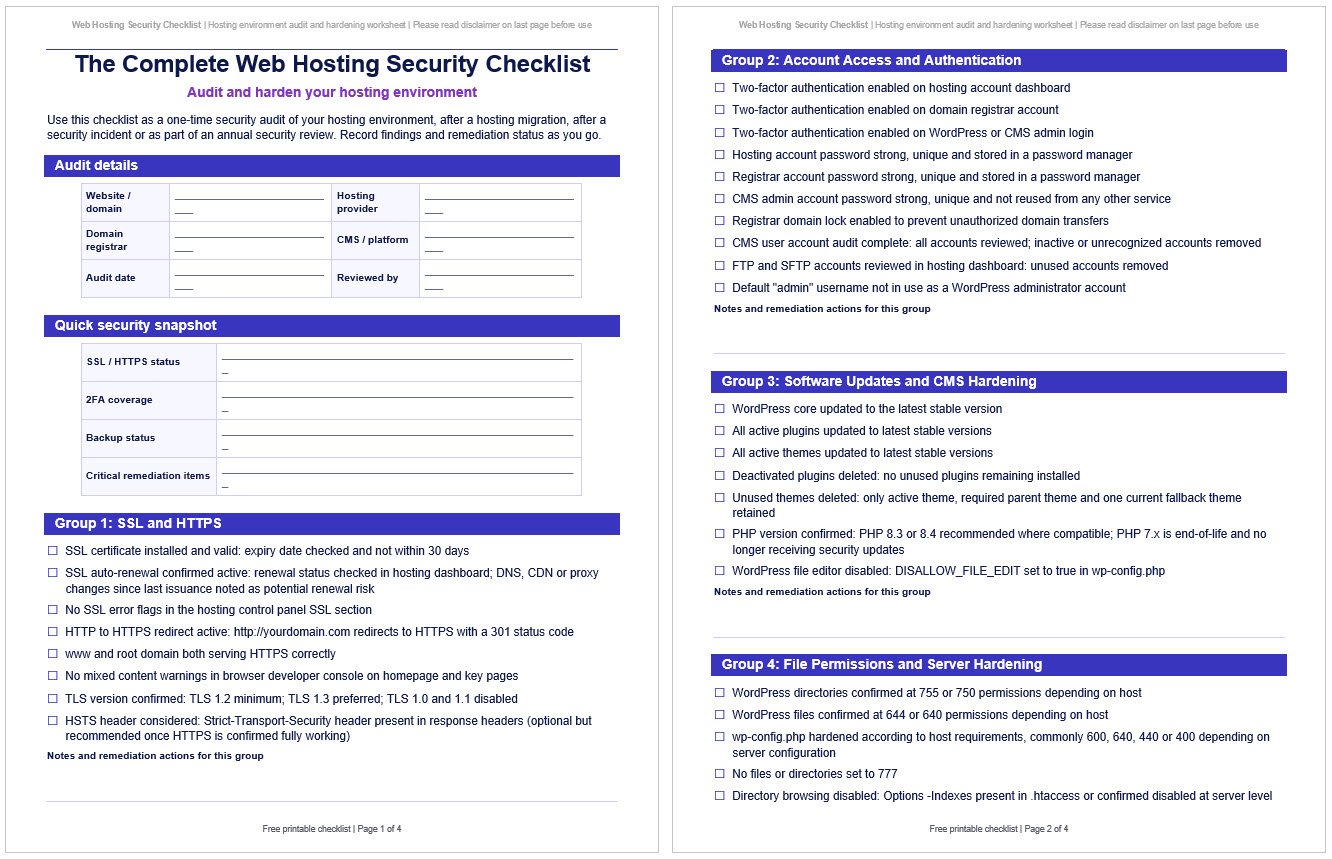
The Complete Web Hosting Security Checklist
Use this checklist as a one-time security audit of your hosting environment, after a hosting migration, after a security incident or as part of an annual security review.
Record findings and remediation status as you go.
This checklist is available as a free downloadable PDF and editable Word document above at Web Hosting Services.
Group 1: SSL and HTTPS
- ☐ SSL certificate installed and valid: expiry date checked and not within 30 days
- ☐ SSL auto-renewal confirmed active: renewal status checked in hosting dashboard; DNS, CDN or proxy changes since last issuance noted as potential renewal risk
- ☐ No SSL error flags in the hosting control panel SSL section
- ☐ HTTP to HTTPS redirect active: http://yourdomain.com redirects to HTTPS with a 301 status code
- ☐ www and root domain both serving HTTPS correctly
- ☐ No mixed content warnings in browser developer console on homepage and key pages
- ☐ TLS version confirmed: TLS 1.2 minimum; TLS 1.3 preferred; TLS 1.0 and 1.1 disabled
- ☐ HSTS header considered: Strict-Transport-Security header present in response headers (optional but recommended once HTTPS is confirmed fully working)
Group 2: Account Access and Authentication
- ☐ Two-factor authentication enabled on hosting account dashboard
- ☐ Two-factor authentication enabled on domain registrar account
- ☐ Two-factor authentication enabled on WordPress or CMS admin login
- ☐ Hosting account password strong, unique and stored in a password manager
- ☐ Registrar account password strong, unique and stored in a password manager
- ☐ CMS admin account password strong, unique and not reused from any other service
- ☐ Registrar domain lock enabled to prevent unauthorized domain transfers
- ☐ CMS user account audit complete: all accounts reviewed; inactive or unrecognized accounts removed
- ☐ FTP and SFTP accounts reviewed in hosting dashboard: unused accounts removed
- ☐ Default “admin” username not in use as a WordPress administrator account
Group 3: Software Updates and CMS Hardening
- ☐ WordPress core updated to the latest stable version
- ☐ All active plugins updated to latest stable versions
- ☐ All active themes updated to latest stable versions
- ☐ Deactivated plugins deleted: no unused plugins remaining installed
- ☐ Unused themes deleted: only active theme, required parent theme and one current fallback theme retained
- ☐ PHP version confirmed: PHP 8.3 or 8.4 recommended where compatible; PHP 7.x is end-of-life and no longer receiving security updates
- ☐ WordPress file editor disabled: DISALLOW_FILE_EDIT set to true in wp-config.php
Group 4: File Permissions and Server Hardening
- ☐ WordPress directories confirmed at 755 or 750 permissions depending on host
- ☐ WordPress files confirmed at 644 or 640 permissions depending on host
- ☐ wp-config.php hardened according to host requirements, commonly 600, 640, 440 or 400 depending on server configuration
- ☐ No files or directories set to 777
- ☐ Directory browsing disabled: Options -Indexes present in .htaccess or confirmed disabled at server level
- ☐ PHP execution blocked in the uploads directory
- ☐ readme.html removed from site root (note: may reappear after core updates; include in periodic reviews)
- ☐ license.txt removed from site root
- ☐ xmlrpc.php disabled or access restricted if XML-RPC is not required
- ☐ SFTP used for file transfers rather than plain FTP
Group 5: Email Authentication
- ☐ SPF TXT record present and starting with v=spf1
- ☐ Exactly one SPF record exists for the domain (duplicate SPF records break authentication)
- ☐ SPF record includes all current sending sources: hosting server, email provider, third-party tools
- ☐ DKIM TXT record present at correct selector subdomain as specified by email provider
- ☐ DKIM record value contains correct current public key
- ☐ Old DKIM records from previous email providers removed
- ☐ DMARC TXT record present at _dmarc.yourdomain.com with at minimum p=none policy
- ☐ DMARC reporting address configured to receive aggregate reports
- ☐ All email records checked using MXToolbox or equivalent verification tool
Group 6: Backups, Scanning and Firewall
- ☐ Automated daily backups confirmed active and running on schedule
- ☐ Backup verified restorable: test restore of at least one component performed
- ☐ Backup stored off-server: not only on the same hosting account
- ☐ Backup retention window confirmed: at least 7 days of restore points available
- ☐ Malware scan run and results reviewed: no flagged files or all flags investigated
- ☐ Malware scanning scheduled to run automatically rather than only on demand
- ☐ Web Application Firewall (WAF) active: hosting panel WAF, Cloudflare or security plugin WAF confirmed
- ☐ Login rate limiting or brute-force protection active on CMS admin login
- ☐ Security headers reviewed: X-Content-Type-Options, X-Frame-Options and Referrer-Policy headers present
Want Your Hosting Environment Audited by Someone Who Does This Regularly?
Working through this checklist reveals the gaps.
Closing them requires either the time to address each item or someone with the technical knowledge to do it efficiently.
Most of the items here are straightforward configuration tasks; a few require server-level access or hosting provider involvement.
At Web Hosting Services, security audits and hosting hardening are among the most common engagements we take on.
Whether you want someone to run this audit on your behalf, close the gaps that the audit identifies, or set up a managed environment where the security baseline is maintained automatically, contact us and describe your current setup.
We will tell you what is exposed and what it would take to close it.
References & Additional Resources
- WordPress.org. “Changing File Permissions.” Advanced Administration Handbook.
- Let’s Encrypt. “Documentation.”
- MXToolbox. “Email Header Analyzer, Blacklist Check and DNS Tools.”
- Scott Helme. “Security Headers.”
- Cloudflare. “Cloudflare Web Application Firewall.” Cloudflare Developer Documentation.
- ICANN. “Domain Name System (DNS) Resources.”
- Wordfence. “2024 Annual WordPress Security Report.” Wordfence Blog.
- Google. “Email Sender Guidelines.” Google Workspace Admin Help.
- PHP. “Supported Versions.” PHP Documentation.
- MDN Web Docs. “Strict-Transport-Security.” MDN Web Docs.
- Mozilla. “Mozilla Observatory.”
Tagged In:
- Backups, DNS Records, Domain Names, File Permissions, Hosting Fundamentals, Hosting Reliability, Hosting Security, Hosting Setup, HTTPS, Malware Scanning, Managed Hosting, Server Security, SPF DKIM DMARC, SSL Certificates, Two Factor Authentication, Web Hosting, Website Hosting, Website Performance, Website Security, WordPress Security